💻 Computer / Browser
Open Roblox, go to the profile, and copy the full profile URL from the browser address bar.
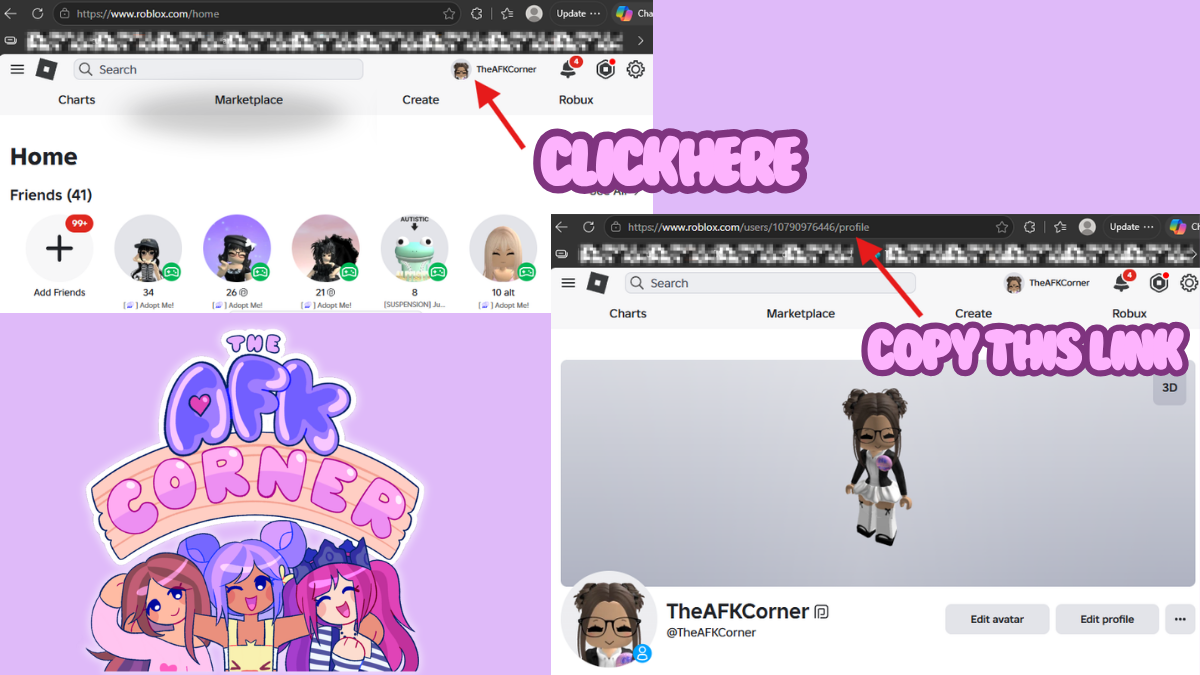
The computer instructions show exactly where to click and where to copy the profile URL.
A simple system for helping members who genuinely cannot join a server because of Roblox privacy settings or because they play on console.
Jump to the full workflow ↓Everything is connected. The member submits once, the system verifies the Roblox profile, and the assigned host can work the request from Discord or the Host Portal.
The member can choose whether they are getting their Roblox profile link from a computer/browser or directly from the Roblox mobile app.
Open Roblox, go to the profile, and copy the full profile URL from the browser address bar.
The computer instructions show exactly where to click and where to copy the profile URL.
Open the Roblox app, visit the profile, use Share, then choose Copy Link.
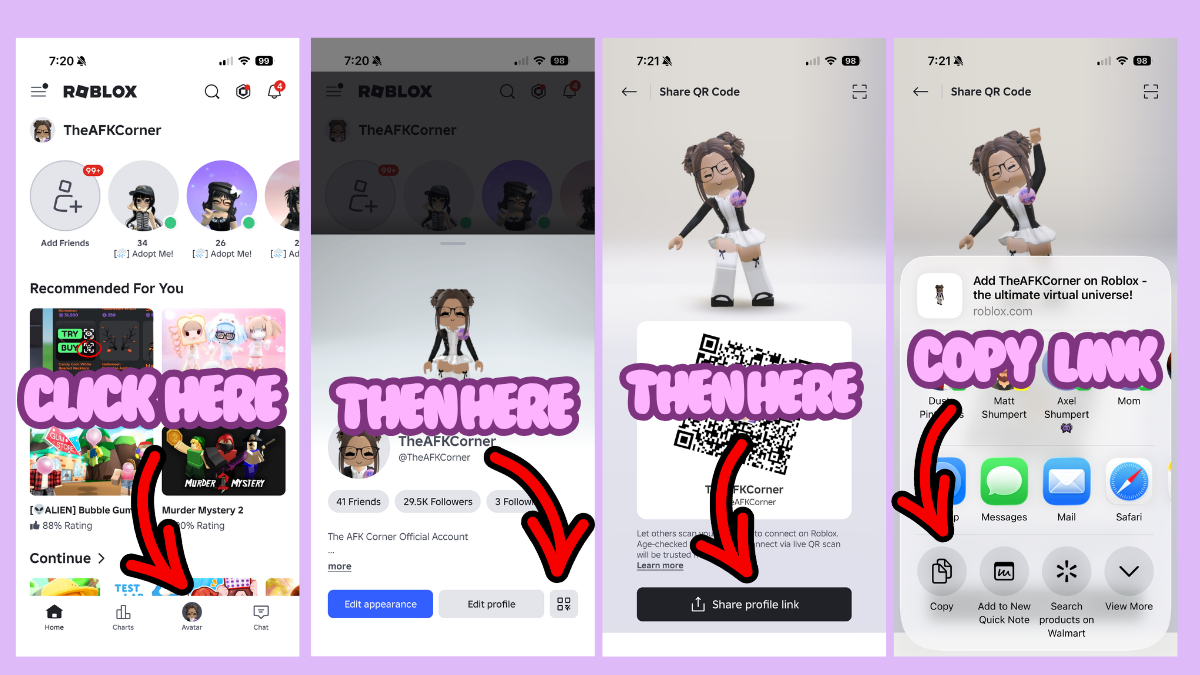
The mobile instructions walk the member through copying the profile link from the Roblox app.
Once they have the link, they paste it into the request form and submit it.
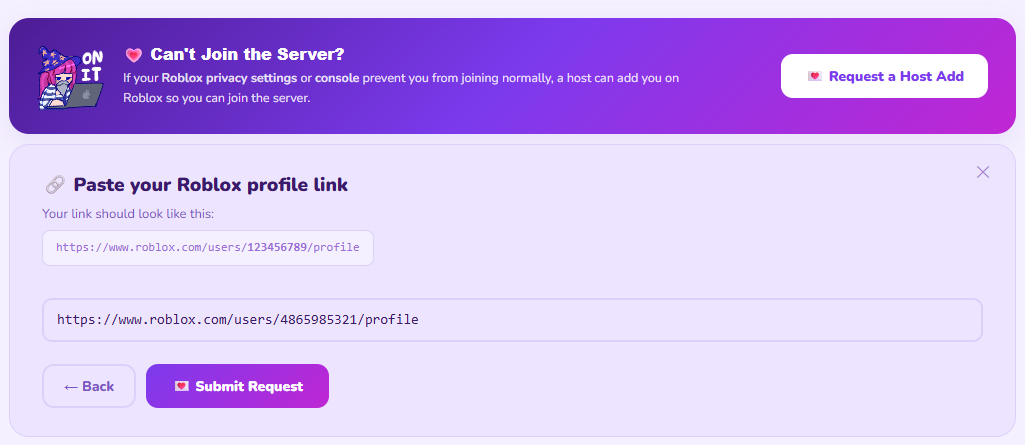
This is the submission screen the member sees before sending the request.
The submitted link is checked against Roblox and the member’s actual profile information. The host workflow uses the verified profile information rather than blindly trusting whatever URL was typed.
A Roblox account cannot be submitted repeatedly. If that account has already been submitted, the system flags the duplicate instead of creating another request.
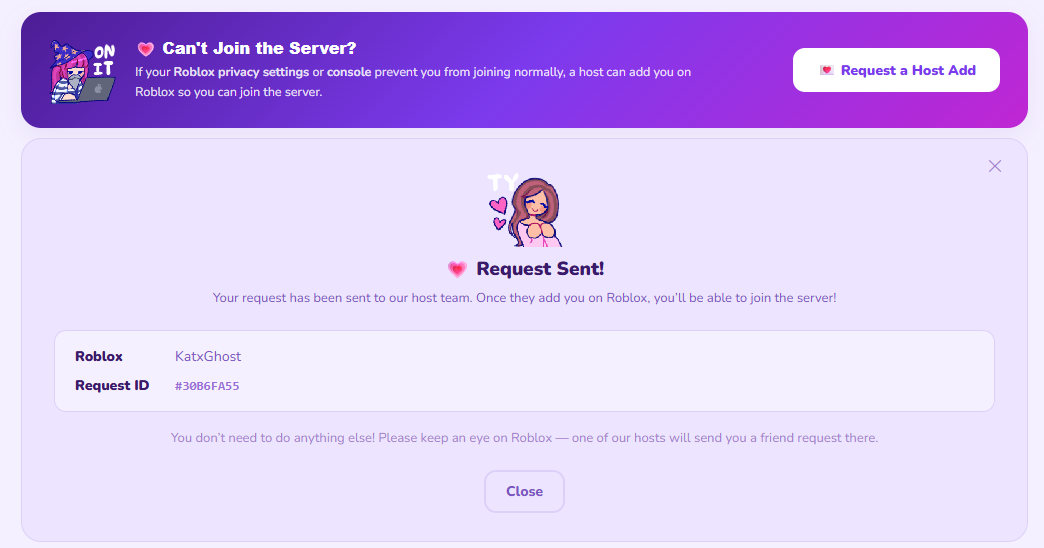
The member gets a confirmation with the Roblox account and request ID, then waits for a host to add them.
The assigned host receives a Discord DM with the member’s Roblox profile, team, request ID, and a direct action button.
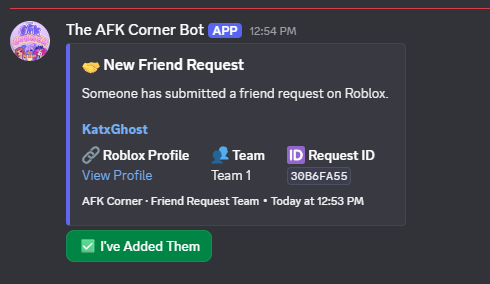
Use the profile link to open the Roblox account, add the member, then click I’ve Added Them.
You do not have to work from Discord alone. Your Friend Reqs area shows outstanding requests and request history.
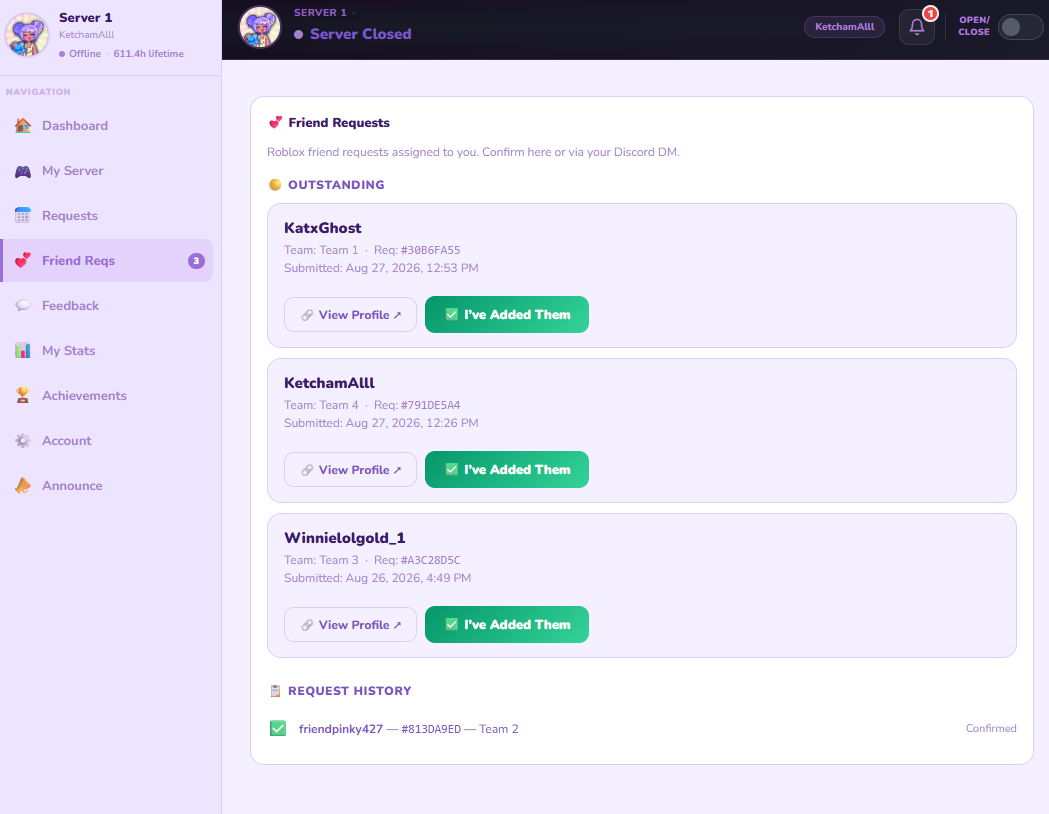
Open the member’s profile, add them on Roblox, then select I’ve Added Them. Completed requests move into history.
Use the I’ve Added Them button on the friend-request DM after you have successfully sent the Roblox friend request.
Open Friend Reqs, find the outstanding request, add the member from the provided profile, and select I’ve Added Them.